

 Home >


 Products
 59.95
Price:$49.95
59.95
Price:$49.95
Don't worried when your Windows computer data is corrupted, deleted or formatted,all you lost/deleted data are still on your computer external hard drive,or other storage media,you can recover/restore them with a data recovery software easily.
Data Recovery for Windows is a powerful yet easy-to-use Windows data recovery software that can recover your Photo,Video,Audio or other lost Data,it also helps you to recover the data lost due to virus infection and files that are corrupted due to viruses.Wondershare data recovery is compatible with most versions of windows which makes it easier to work wit.
Data Recovery pro can help you recover/restore deleted, formatted, lost and inaccessible data from PC, USB drive,Memory Card,Digital cameras,external hard drive, mobile phone, iPod, MP3/ MP4 player, CD Roms,Memory Sticks,and other storage media.This cost-effective and non-destructive data recovery tool with unique recovery modes helps you perform data recovery thoroughly.Wondershare Data Recovery supports FAT12, FAT16, FAT32, NTFS/NTFS5 file systems.
For Mac users: Data Recovery Software for Mac


 Key Features
 How to Recover Lost Data on Computer?
.jpg)
This Guide for beginners-Recover Data in Wizard Mode
Recover Data in Standard Mode(Lost File Recovery/Partition Recovery/Raw File Recovery/Resume Recovery)


Step1. Choose recover lost data in Wizard Mode
After run the data recovery software, the software automati guides you to Wizard Recovery Mode,you you only need to click "Next", then the software wil rest for you to recover lost fies.
.png)
Step2. Select what type of files you want to recover
Choose what type of files you want to recovery, here shows all types file,such as Photo, Video, Music, Office Doucment, Email and al files types.
.png)
Step3. Choose the path whhere you have lost files
.png)
Step4. Star to scan your lost files
There are two scan mode for you to scan you lost files:"Deep Scan" or "Raw File Recovery". Generally, "Deep Scan" can help you recover all lost files lost that you have formated before, while "Raw File Recovery" supports restore all files that you lost long time ago for various reasons. Therefore, you can ignore them if you only want to recover the files you deleted recently.
.png)
Step5. Preview and recover your lost files
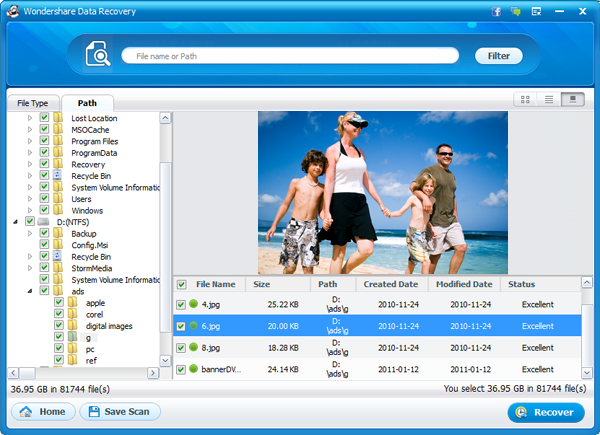
If you chose "All files" , it means you can recover all of you lost files at one times.What's files you can recover at onces? Such as archive, audio, database, document, email, graphic, video, etc. You can recover them selectively after previewing. PDF, PPT, RAR, ZIP, Excel, and photos like PNG, JPG, JPEG, TIF, etc. Before you recover them, you also can preview what's file you lost.
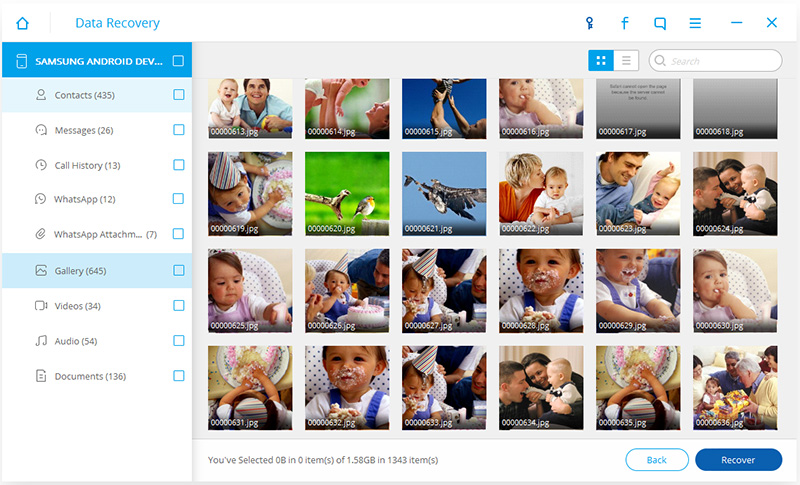
Additionally, you can check the previous path of those files by switching "File type" to "Path".
Important: Do not save the recovered file to the location where you lost files before. If you do not withdraw the document you are looking for, they will cover the new file.
Tips: Early Recovery: During the recovery process, you can check the file at the same time. If the file you want to scan, you can "pause" and restore their first. Then click "Continue" or "stop" scanning.
Filter: You can filter the results of the scan lost files by searching for the file name or path.
Save the scan results: When you stop scanning, you can save the current scan results at a later time to recover. ...
Other use guide: Recover Data in Standard Mode-Lost File Recovery/Partition Recovery/Raw File Recovery/Resume Recovery
 Related Articles

 Retail Price: $
 Buy Now
 Download


 Copyright © 2012 Z0DOWNLOAD.COM. All rights reserved.